Import data (Excel)
Excel import is the way to load or update a certificate's data in bulk: members, properties and products (SFM) or sites and products (CoC), turnover (CoC) and species.
This guide provides guidance on preparing the file, reading validation errors and what to do when the import does not go as expected.
PEFC Portugal announced the full availability of the importer, the steps to follow and the deadline for updating the data in Announcement 3/2025 (PDF, also available in the attachments of this page).
Who can import
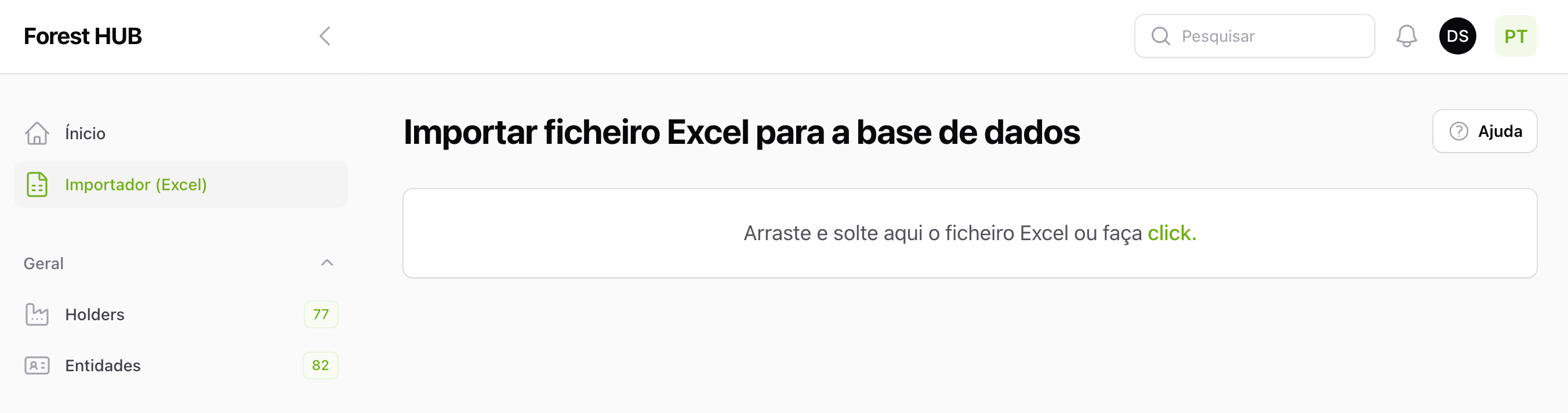
All three profiles (Administration, CB and Holder) can import, each for the certificates they have access to. The page is available under Importar ficheiro Excel (Import Excel file) in the side menu.
How it works
- Upload the Excel file (
.xlsx). - The system validates the file in the background and displays a report.
- If the validation shows no errors, confirm the import.
- The data is processed in the background. The page refreshes itself and, at the end, shows the import report. No notification is sent: if you leave the page, come back to it to see the result.
The page refreshes itself while the file is being processed. You can leave and come back; the status is restored.
What the import creates, updates and removes
The import works from the file, comparing it with what already exists on the platform:
- Creates the record when it does not exist yet.
- Updates the record when it already exists.
- Synchronises products and species: if a product or a species exists on the platform but is not in the file, it is removed. The removal is recorded in the certificate's history.
- Records the exit date of properties (SFM) that are not in the file: for each member in the Membros (Members) sheet, the properties in the certificate that do not appear in the Propriedades (Properties) sheet get the date of the import as their exit date and the reason «Não consta do ficheiro Excel importado a dd/mm/aaaa.» (Not in the Excel file imported on dd/mm/yyyy). The properties are not deleted and can be reinstated (see Retirar e reintegrar (Withdraw and reinstate)). Members that are not in the file are not changed.
- Never deletes certificates, sites, members, properties or turnover records, even if they are not in the file.
All actions are recorded, in the name of the person importing, in the certificate's activity report.
Sheet order
The file has one sheet per data type, and the order matters because each sheet depends on the previous one:
| Sheet 1 | Sheet 2 | Sheet 3 | Sheet 4 | |
|---|---|---|---|---|
| SFM | Membros (Members) | Propriedades (Properties) | Produtos (Products) | Espécies (Species) |
| CoC | Sites | Volume de negócios (Turnover) | Produtos | Espécies |
The full structure of each sheet is in Excel file structure.
Filling-in rules
Most errors come from details in how the file is filled in. The most frequent:
Sheets must relate to each other
In SFM, properties refer to the member, and products and species refer to the property (through the Nome da propriedade (Property name) column).
In CoC, turnover, products and species refer to the site. These names must match exactly across sheets: an extra space, a different accent or a wrong capital letter breaks the link.
Species
- Use the scientific name exactly as it appears in the Espécies menu in the reference data.
- If the species does not exist in the catalogue, the row fails. In that case, ask PEFC Portugal to add it (through the helpdesk) before importing again.
NIF/NIPC
The NIF/NIPC column of the Membros (Members) and Sites sheets follows the same format rules as the form
(see The tax number): only the number, without spaces or
punctuation; digits, letters, dot and hyphen; 9 digits are treated as a Portuguese NIF, with check digit verification;
foreign numbers with 9 digits carry the country prefix (e.g. GB749933773). This is what the column comment in
the exported file says.
- NIFs that already exist in the application pass even with a wrong check digit: they are corrected in the entity record, not in the file.
- If the format fails, the row is rejected in the validation report, in the right sheet, with the row number and the value
written between «» (messages shown in Portuguese):
- «O NIF/NIPC «749 933 773» contém espaços, tabs ou quebras de linha. Escreva só o número.» (contains spaces, tabs or line breaks; write only the number)
- «O NIF/NIPC «504810332/1» tem caracteres inválidos: só são admitidos dígitos, letras, ponto e hífen.» (invalid characters; only digits, letters, dot and hyphen)
- «O NIF 749933773 não é válido (dígito de controlo). Se for um número estrangeiro de 9 dígitos, acrescente o prefixo do país (ex.: GB749933773).» (not valid, check digit; add the country prefix for a foreign 9-digit number)
Numbers and percentages
- The decimal separator is the comma and 2 decimal places are used (e.g.
1,12). - Values with more decimal places are rounded automatically to 2 places (
1,1157becomes1,12). - Do not include text in numeric value cells.
- Species percentages per product must follow the format defined above. The sum of the species percentages for a product may exceed 100%.
Product categories
The category code or name in the products sheet must exist and match the
Categorias de produtos (Product categories) menu in the reference data. Codes with fewer than 6 digits are automatically padded with
leading zeros (10000 becomes 010000).
Common errors
These are the validations that generate the most errors. The full list, field by field, is in Validation rules.
- SFM, Funcionalidade (Function): Produção (Production) + Conservação (Conservation) + Protecção (Protection) must add up to exactly 100.
- SFM, Área (Area): greater than 0 (minimum 0.01 ha). % FSC and % com alto valor ecológico (% with high ecological value) between 0 and 100. Parcelas (Parcels) at least 1.
- CoC, activity: if the site has activity, a turnover greater than 0 is required; if it does not, the reason for the absence is required.
- CoC, turnover: only the current year and the two previous years are accepted.
- Property names cannot be repeated within the same NIF (accents and capitalisation are ignored).
- Exit dates always require the exit reason. The same applies at certificate level: when cancelling or withdrawing a certificate, the reason requested at that moment is written to the exit reason of each site or member, with the date of the change (see Gestão do certificado (Certificate management)).
The report, step by step
The import has two stages, and each one shows its own report.
Verification report (before importing)
After the file is uploaded, the system checks it and presents the result in three parts:
- Verificação do ficheiro (File verification): confirms that the file has the right structure and version and all the expected sheets, with a ✓ or ✗ for each check.
- Regras (Rules): confirms that the data complies with the general structure rules (for example, the uniqueness of members or sites per application level).
- Conteúdo de cada folha (Content of each sheet): errors are organised by sheet (Membros, Propriedades, Sites...), in tabs, each with the number of errors. Within each sheet, errors are shown by row.
The import can only be confirmed when this verification shows no errors. If an entity in the file belongs to another certificate or CB, sharing must be requested before proceeding.
Properties that will get an exit date (SFM)
In an SFM certificate, when the validation has no errors, the import panel shows, below the "Importar" (Import) button:
- The properties that will get an exit date: the properties of the members in the file that are not in the Propriedades (Properties) sheet, with the member, the name and the area. Clicking "Importar" asks for confirmation.
- The rows that match properties that already have an exit date: the import updates the data of those properties, but they stay out of the certificate. If the name in the row is wrong (for example, with an extra character), the correct property may appear in the previous list.
If any property in the list should stay in the certificate, correct the file and upload it again. The import only records the exit date of the properties shown in this list. Properties are recognised by name, within each member, regardless of upper and lower case, accents or spaces at the start and end.
Import report (after confirming)
Once the import is confirmed, the data is processed and the final report shows:
- Resumo final (Final summary): what was synchronised between the file and the platform.
- Erros (Errors): what could not be imported, grouped by sheet (failures that block everything appear as Falhas críticas (Critical failures)).
- Operações realizadas (Operations performed): what was actually created or updated, per sheet.
You can download the report to keep it or analyse it at your own pace. If the file brings nothing new, the report says so.
Reading and resolving validation errors
These are the most frequent messages in the verification and how to resolve them:
| Message | What it means | What to do |
|---|---|---|
| "categoria de produto não se relaciona com a folha de produtos" (product category does not relate to the products sheet) | The category code/name does not match between sheets | Check that the category exists and is written exactly as in the reference data |
| "falta informação para relacionar com a folha de propriedades" (information missing to relate to the properties sheet) | A product points to a property that does not exist in that sheet | Confirm that the property is in the properties sheet, with the same name |
| Unrecognised species | The species is not in the species list in the reference data | Confirm the scientific name; if it is missing, ask PEFC Portugal to add it through the helpdesk |
| Invalid value | Number with text or in the wrong format | Use a decimal comma, with no text or units |
| "entidade partilhada não validada" (shared entity not validated) | The entity already exists in another certificate/CB and the sharing is pending approval | Wait for the sharing to be validated before importing again |
Correct all the flagged rows before importing again. A row with an error is not imported, and the rest of the file may depend on it.
"I imported, but data is missing"
If the import ran but not all the records appear (for example, fewer members came in than expected):
- Open the import report: rows with errors are not imported and are listed there.
- Confirm the count of members/sites in the certificate.
- Correct the rows with problems and import the file again.
The import does not delete members, sites or turnover records that are not in the file. Products and species are synchronised: those not in the file are removed. In SFM certificates, the properties of the members in the file that are not in the Propriedades (Properties) sheet get an exit date. Members and sites that leave the certificates must first be withdrawn directly on the platform (including the exit date, reason and status). To update the remaining information (turnover, products and species), export the Excel file after the members and sites have been withdrawn.
After importing
Imported data is flagged for verification: the changes are entered as pending and the Certification Body validates them before they are published. Information that has not been validated does not appear in the public database until it is. See Export to Excel if you want to confirm the result in a file.